Hello and welcome to the new Shockplay community. We have quite a few new unique features on this site and we realize that it might take some initial guidance before you feel right at home here. If you need additional information please check our FAQ or if you can't find the answer to your question there, feel free to write us at support@shockplay.com
BUDDY LIST
a) Invite buddies
b) Information about a player
c) Instant communication with your buddies
d) Challenge players
e) Remove buddies
f) Highscore
g) Light bulbs
h) Cancel a match
MULTI PLAYER ROOMS
SINGLE PLAYER GAMES
TOURNAMENTS
FIND PLAYER AND FRIENDS
USER SETTINGS
LOGOUT
BUDDY
LIST
Next to our games this is the key feature on Shockplay. The Buddy List
enables you to keep track of the gaming success (and/or disasters) of
you and your friends. The Buddy List allows you to easily communicate
directly with your Buddies. From the beginning you will be the only one
on your buddy list. You are on the list to easily compare your scores
with your friends.
Invite
buddies
1. Go to "Find Player". Once there you fill in the provided
fields and hit search to locate your buddy. Tip: The more fields you fill
in the higher the likelihood of finding your buddy. More info on the "Find
Player" feature below.
If you are playing a game against someone who is not yet your buddy, that player will be displayed temporarily on your buddy list with a blue light bulb. Simply choose "Become Buddy" from the drop down menu.
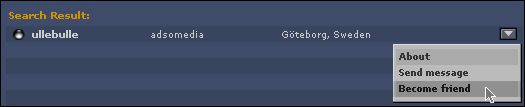
If your search was successful, your buddy will appear in the field to
the right. Click on the grey arrow to the right of your buddy's user name.
A drop down menu will appear and you choose "Become Friend".
Once this is done a message will be sent to your buddy notifying him/her
that you've invited them to become your Buddy on Shockplay. If he/she
accepts you will both appear on each others' Buddy Lists. The maximum
number of buddies you can have on your list is currently set at 30.
2. If you visit one of the Multiplayer rooms you
will be able to invite a player to become your buddy right then and there.
Same procedure as above: You click on the arrow to the right of the person's
user name and invite to become friends.
When you press the arrow to the right of a buddy's name you'll see that the field "Info" appears. When this field is selected a pop-up with this persons gaming history and personal presentation will show up.
We'd like to take this opportunity to yet again remind you not to post any personally identifiable information in your personal presentation such as real name, phone number or physical address. Please make sure that your presentation is in line with our Code of Conduct. With your help we'll keep Shockplay focused on games and free from paedophiles and all other illegal activity.
Back
For the new Shockplay Instant Adrenaline community we have created an instant messaging system of our own. To use this device to communicate with your buddies; simply double click on the buddy's name with whom you wish to communicate. A message window will appear; enter your message and press send.
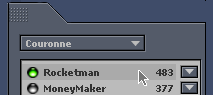
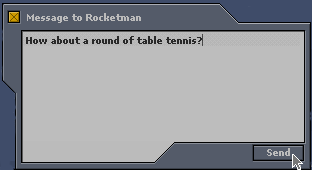
Your buddy will see that a message has been sent by a blinking "talk"
bubble appearing next to your name on his/her buddy list. When you receive
a message from one of your buddies the bubble will likewise appear next
to that buddy's name. To read the message double click on your buddies
name and read the message. To respond click "Reply", and write
your message and press send.
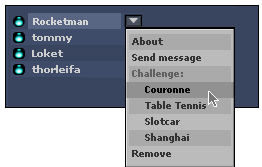
Click on the arrow next to the buddy's name whom you wish to challenge, select the game you'd like to challenge him/her in and click once. YOU CAN ONLY CHALLENGE WHEN THE LIGHT BULB NEXT TO YOUR BUDDY'S NAME IS GREEN. When you've done this a challenge notification will appear on your buddy's screen. He/she can then choose to either accept the challenge or decline. If he/she accepts you'll both automatically be taken to the game. If he/she declines you'll receive a notification saying: "(name) cowardly refused". This means you'll have to go hunting for someone with a bit more courage.
Back
Simply click the now famous arrow, and select the field remove: Mission accomplished!
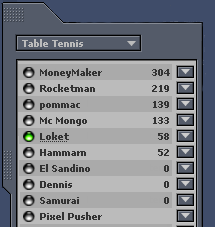
f)
Highscore
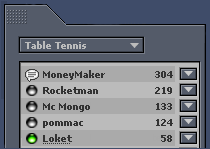
The numbers you see appearing next to each name on your Buddy List is
the score that each individual has accomplished in a selected game. To
view scores for your buddies and your self in different games; press the
drop down menu in the grey area on the top of your Buddy List and select
the game you'd like to see scores for. This feature ranks you and your
buddies and shows which one of you who the best in each of the games is.
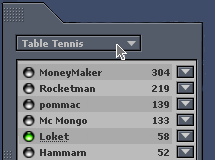
The light Bulbs to the left of each name on your buddy list indicates the status of your buddies:
Green: Online and not busy playing a game
Yellow: Online but busy playing
Grey: Offline
Blue: Online but not yet your buddy.

When you're playing a match you always have the option to "cancel" the match. You can do this by click up your Buddy List and then click on the grey arrow next to your own name and then select "cancel the match". Important to know is that you're going to loose 50 points if you cancel a match.
MULTI
PLAYER ROOMS
When you enter Shockplay you'll have two different menus in the bottom
by the windows displaying the different games; Single Player and Multi
Player.
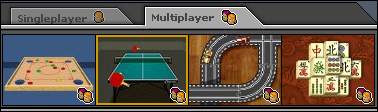
The menu showing the multiplayer games is always
pre-selected. Each of the multiplayer games has their own chat room where
players can meet and interact. In these rooms you'll also be able to meet
players from around the world not yet your buddy. In order to enter one
of these rooms simply click on your preferred game on the game display
windows. Once you've clicked on a game you'll be presented with three
different alternative rooms for each game: Beginners, Amateurs and Champions.
Click on the room of your choice in order to enter the chat room.
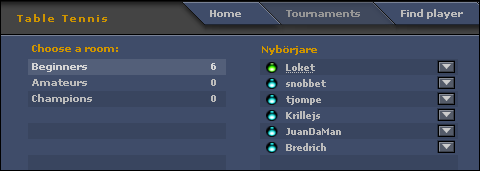
Once inside the chat room you'll be able to see who else is in there since
everybody will be listed next to the chat area. When you're done chatting
with the other players you can also challenge one another directly from
the chat room. Simply use the "good ol" arrow again and select
challenge. Here as well as on pretty much any place within the site where
you have access to the Arrow, you'll be able to check out the info on
the other gamers and challenge them or invite them to become friends.
Important: Please make sure you adhere to the Code of Conduct while chatting in these game specific rooms. We'd hate to boot you out.
You
can challenge other players through your buddy list by clicking the arrow
intended opponent and selecting "challenge".
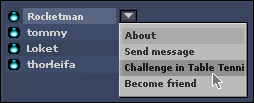
You can also challenge players in the multiplayer rooms by using the same procedure as above.
Since the multiplayer game menu is default you'll have to click on the tag saying "Single player" in order to display the single player games available. In order to play one of the single player games simply click on the game of your choice. After you've clicked on a game you'll be taken to the starting page of that game. On the starting page of each game there will be instructions on how to play the game. There will also be the top 100 high score list for that specific game.
Once you've played our games for a while and you feel competent enough to take on the world, it might be time to create your own tournament. To do that, click on Tournaments on the main menu at the top of the site. Once you've entered the main page for tournaments you'll be able to view all ongoing tournaments you've been invited to, or that you've created yourself. If you'd like to know the status on a tournament and see the current results simply double click on one of the tournaments displayed. You'll then be taken to that tournaments specific information page where you can view results and challenge the other participating players. To go back to the main listing of tournaments click the "Choose tournament" button.
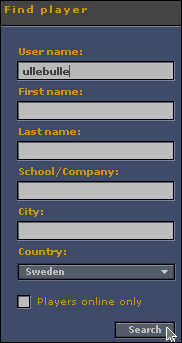
To find new players on Shockplay, click on the "Find Player"
on the main menu. If you have an idea of who you'd like to find fill in
the fields on the left hand side of the page and press search. Naturally
the more information you fill in the greater the chance of finding who
you're looking for. Important to know: You always
have to select a country. We have listed 12 specific countries,
members from other countries than those listed will fall under the category
"other countries". A maximum of 20 players will be displayed
as a search result (even if there might be a thousand total available
players in your selection). Again if you'd like to alter the search result,
you'll have to fill in more information. To further narrow down your search
you can also select to search for players online only.
You'll be able to tell the status of the players on your search result by the light bulbs, and you'll also have the option to use the famous arrow to find about more about the players as well as to invite them to become friends, or just to send them a message.
USER
SETTINGS
In order to edit your personal information and to add stuff to your info
page click on the "settings" buttons in the main menu. Your
basic info that you filled in while registering will already be filled
out and there are a couple of things that you can't change, such as: Real
name, User name and Country. Everything else you'll be able to edit.
Important: When uploading an image and writing your presentation to your personal info page make sure that it is in line with the code of conduct.
For technical adjustments use the section on the bottom right corner on the "Settings" page. This section will allow you to adjust volume, music, sound effects, your computer's 3D setting and network settings.
When you want to stop playing you'll simply click on the "Logout" button in the main menu. The window will close and your light bulb on your friends buddy lists will turn grey. If you just close the Shockplay window you wont be logged out right away and other players will think you are still online. It is also good to know that if you quit playing in the middle of a multiplayer game chances are you will loose highscore points.